

POS login, Store ID, Staff ID, and PIN setup
Learn the difference between Admin Email and Staff PIN login, then find the correct Store ID, Staff ID, and PIN for POS login.
Install GoodCashier & open your first shift
Watch on YouTube1. Choose the correct login mode
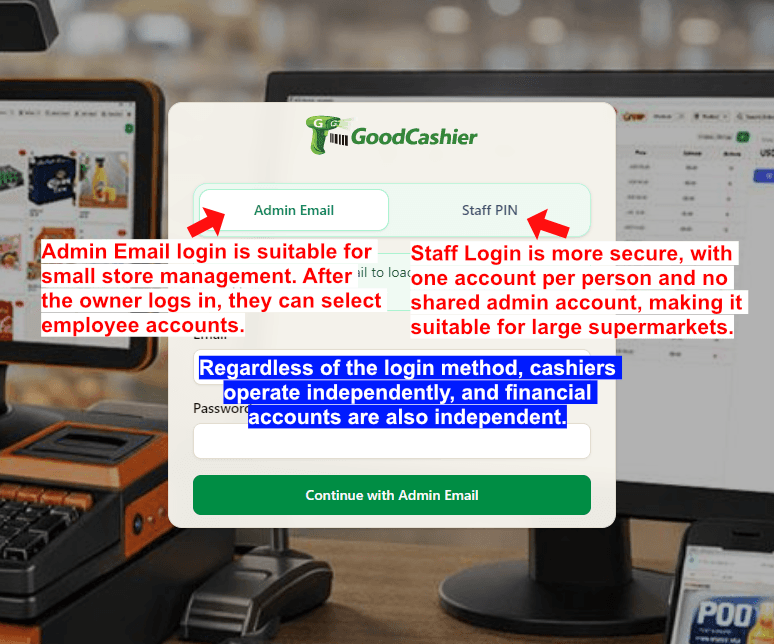
Boss Login uses the boss's email and password to enter POS as the boss. A single shop opens directly; multiple shops require only a shop choice.
Staff PIN is better for larger teams because each cashier uses their own staff account and 6-digit PIN without sharing an admin account.
Sales and shift records use the signed-in account: the boss for Boss Login, or the employee for Staff PIN.
2. Find the Store ID in the dashboard header
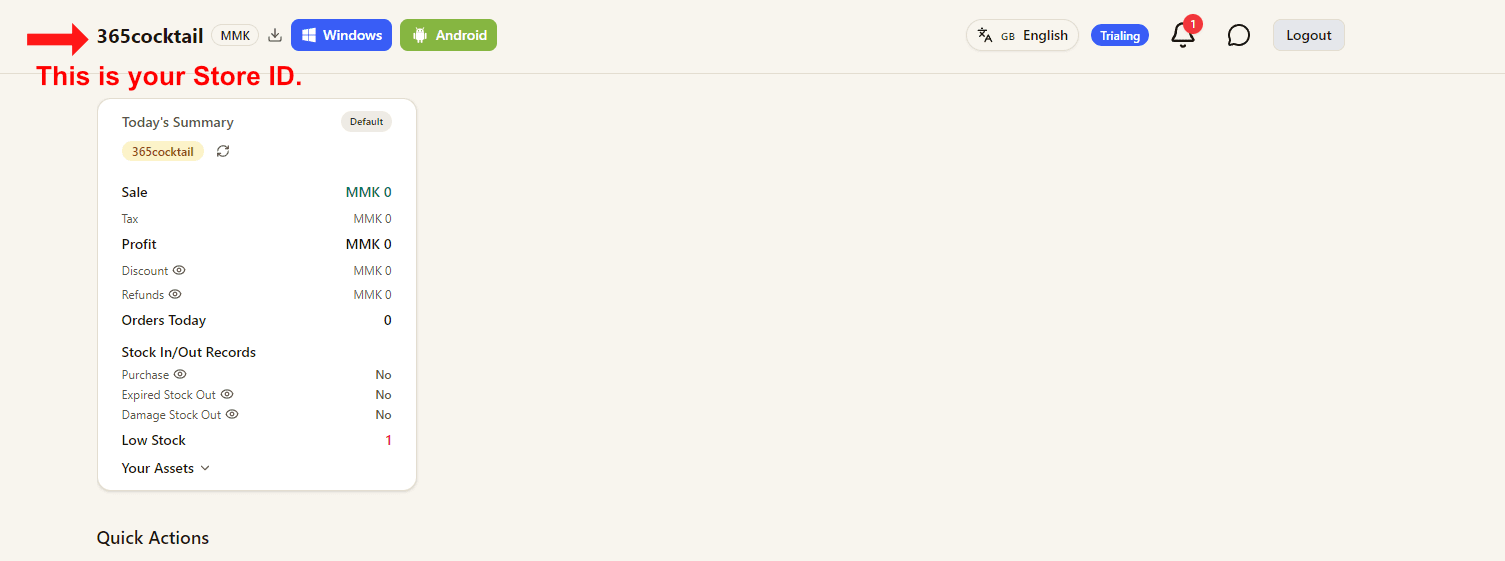
After you sign in to the dashboard, look at the top-left store name area.
The short code shown beside the store name is the Store ID used by the POS login screen.
3. Open the Staff page from Quick Actions
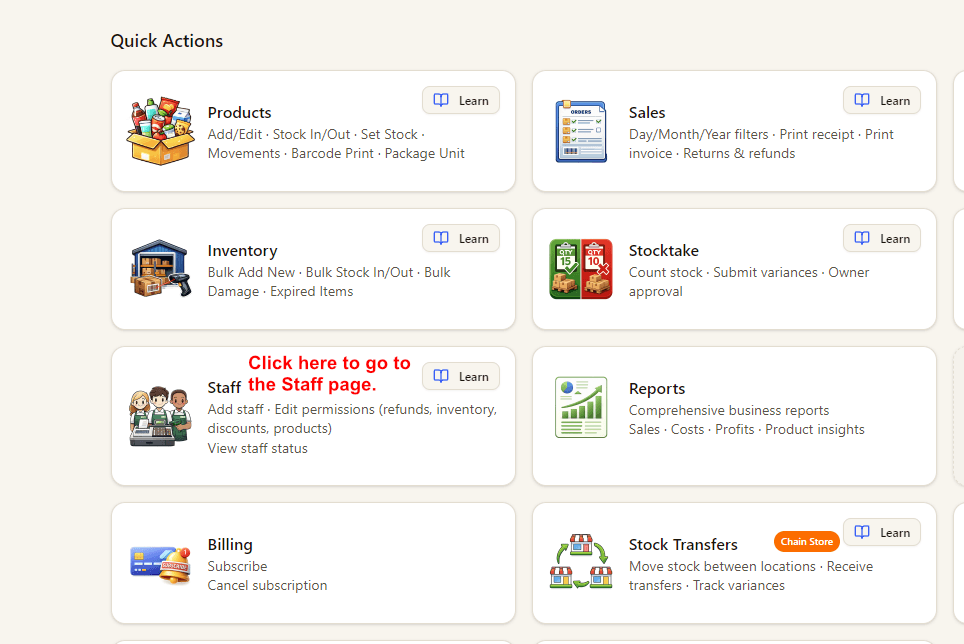
From the dashboard home page, open Quick Actions and click Staff.
This is where you check existing staff accounts or create a new cashier login for POS.
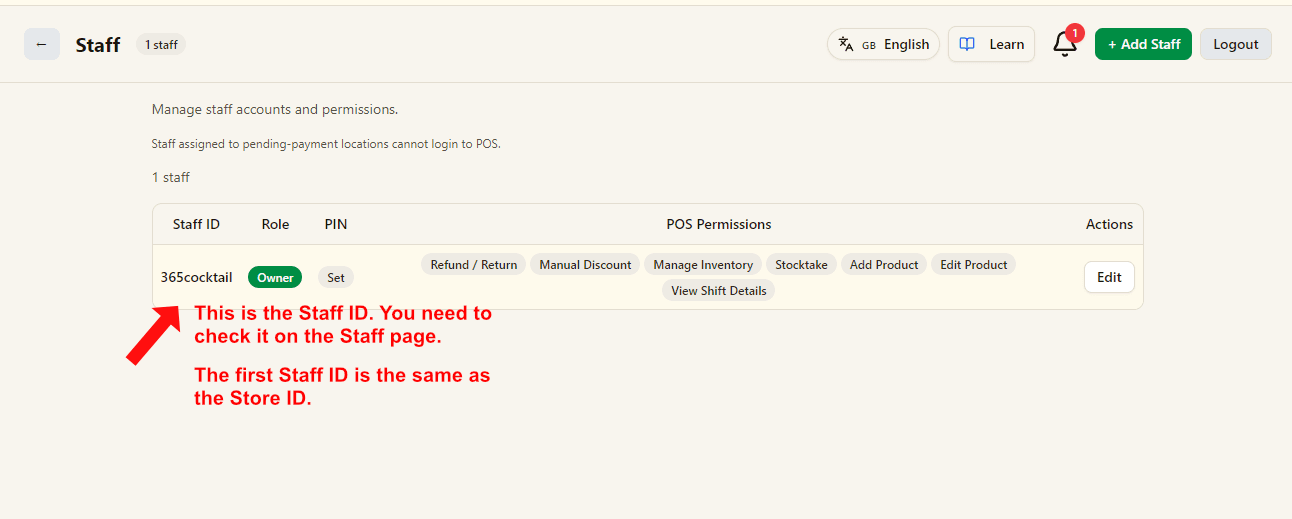
4. Check the Staff ID on the Staff page
The Staff page shows every POS staff account and its Staff ID.
For many new stores, the first default staff account uses the same value as the Store ID.
5. Create a staff account and 6-digit PIN
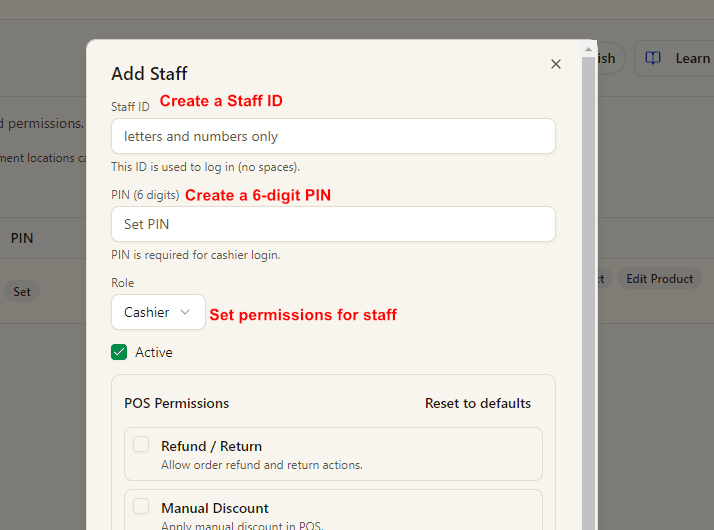
When adding a new staff member, create a Staff ID using letters and numbers only.
Set a 6-digit PIN for cashier login, then choose the role and POS permissions that this staff member should have.
- Staff ID is used at the POS login screen.
- PIN is required for Staff PIN login.
- Role and POS permissions decide what the cashier can do after entering POS.